
1. Navigation Bar
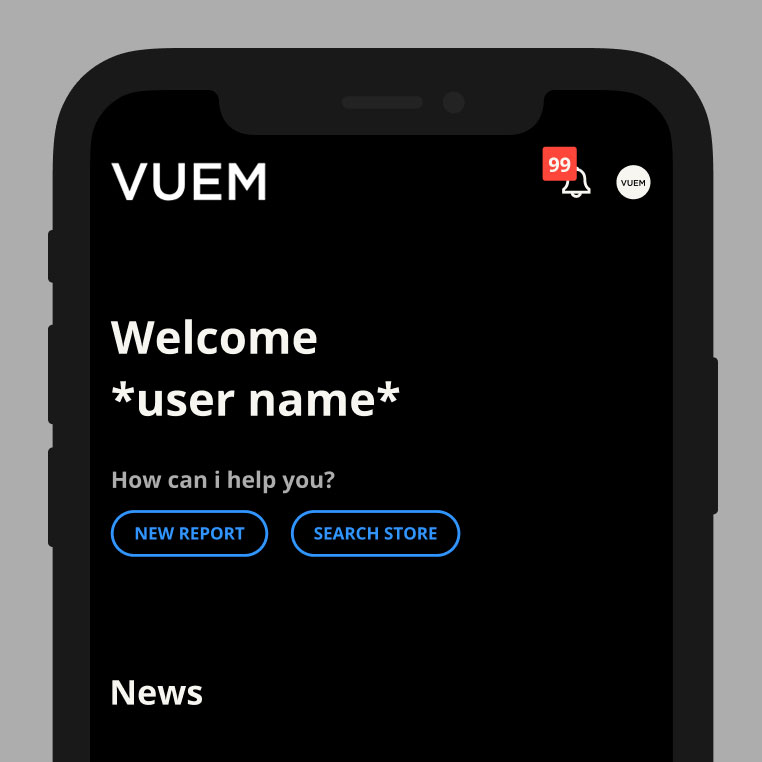
Next to the brand logo of your work group you will find the notifications icon with the number of the notifications to be read and a personal round icon with your profile image or your initials if you haven’t set any image.
2. Notifications
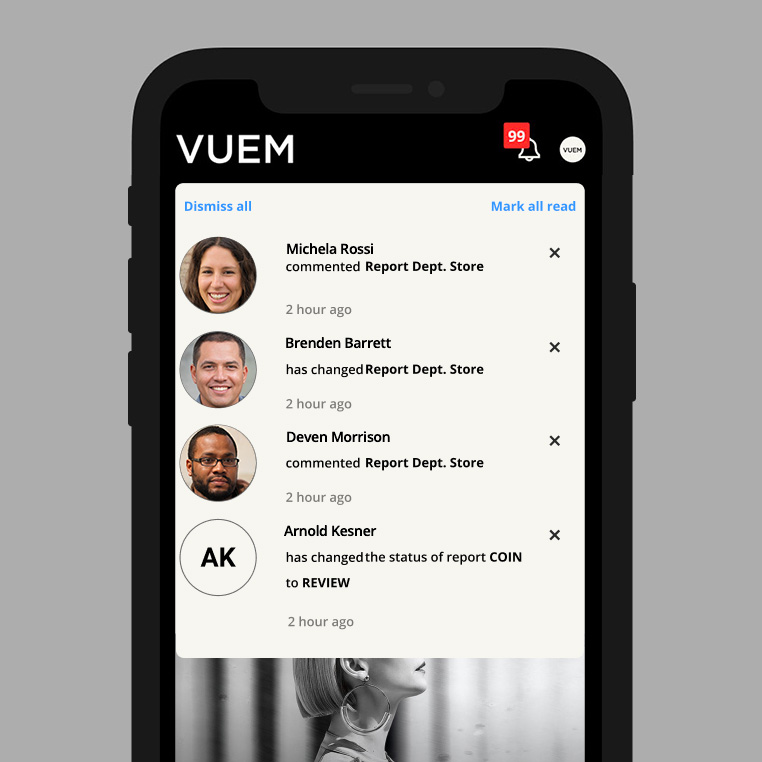
By clicking on the notification icon you can read notifications relating to important activities. By clicking on a notification it will be possible to go to the linked object or delete it with the “x” on the right.
3. Personal Menu
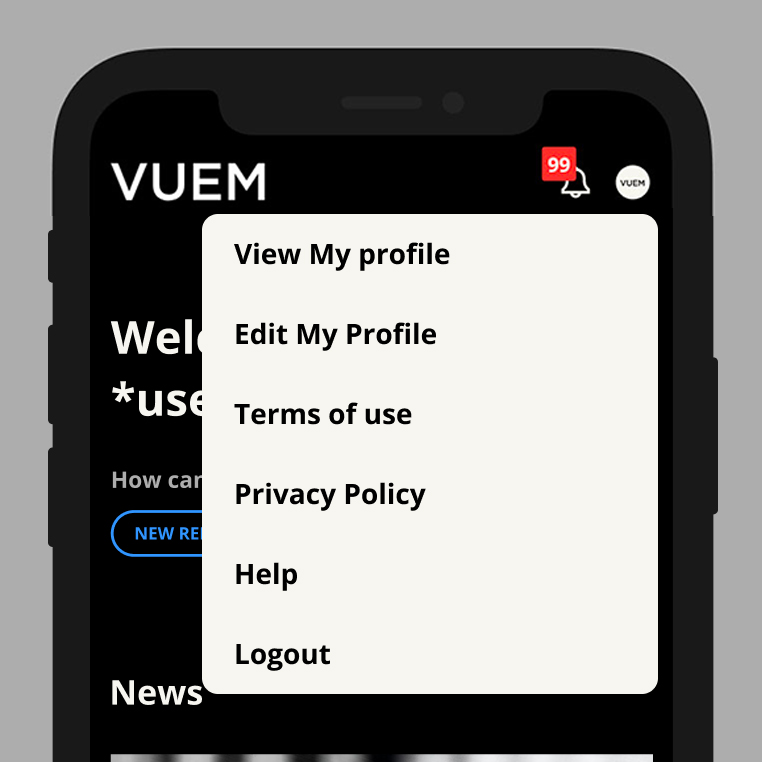
Clicking on the profile icon in the upper right part of the screen will open the personal menu containing the editing and viewing actions of the personal profile, links to important documents, the help section and the logout from the system.
4. Quick Actions
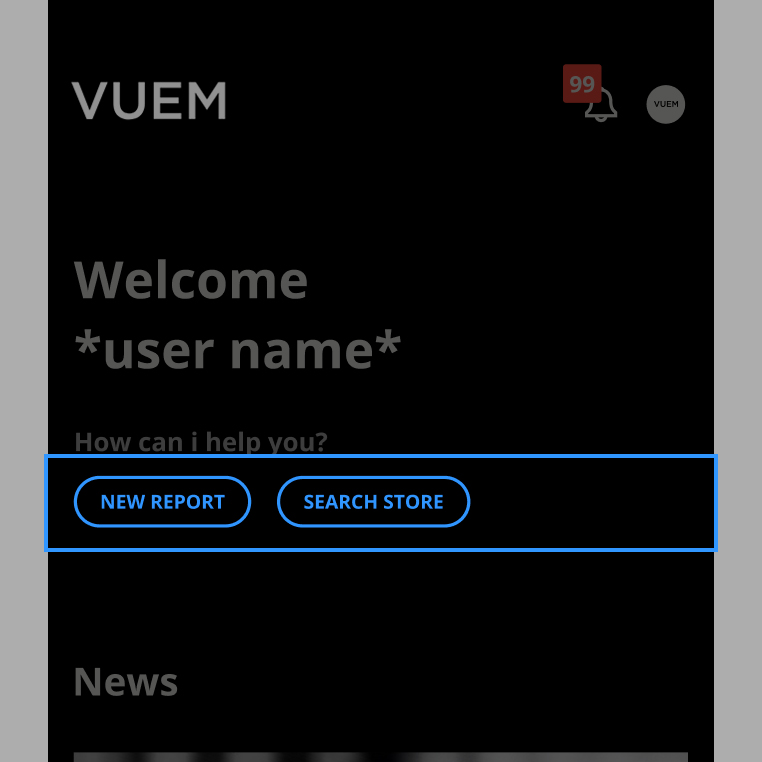
Below the welcome message you can find the quick actions such as creating a new report or searching for a store inserted in the database.
5. News Feed
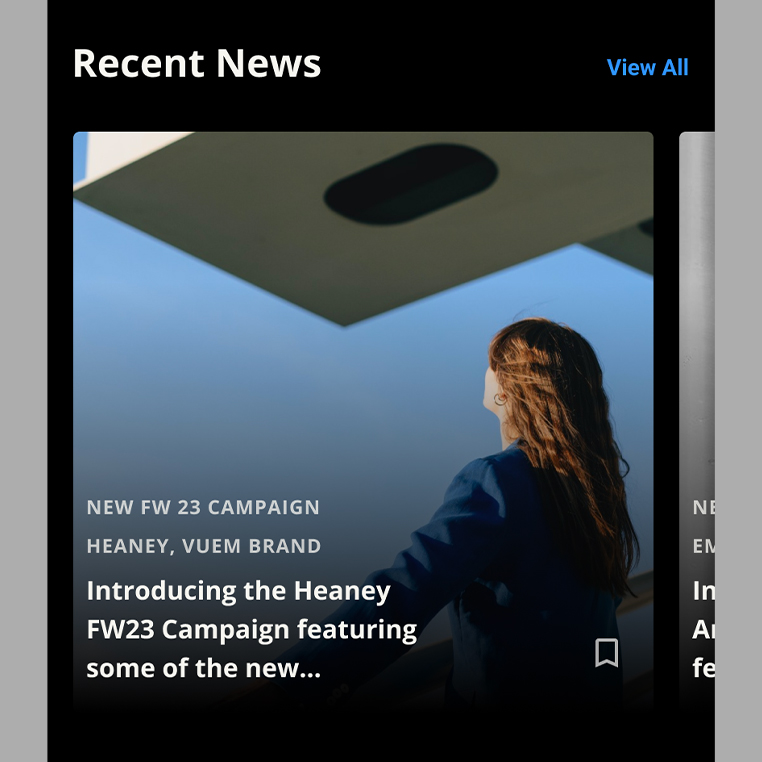
Updates, news, documents, guidelines and the most recent company initiatives are present in this area.
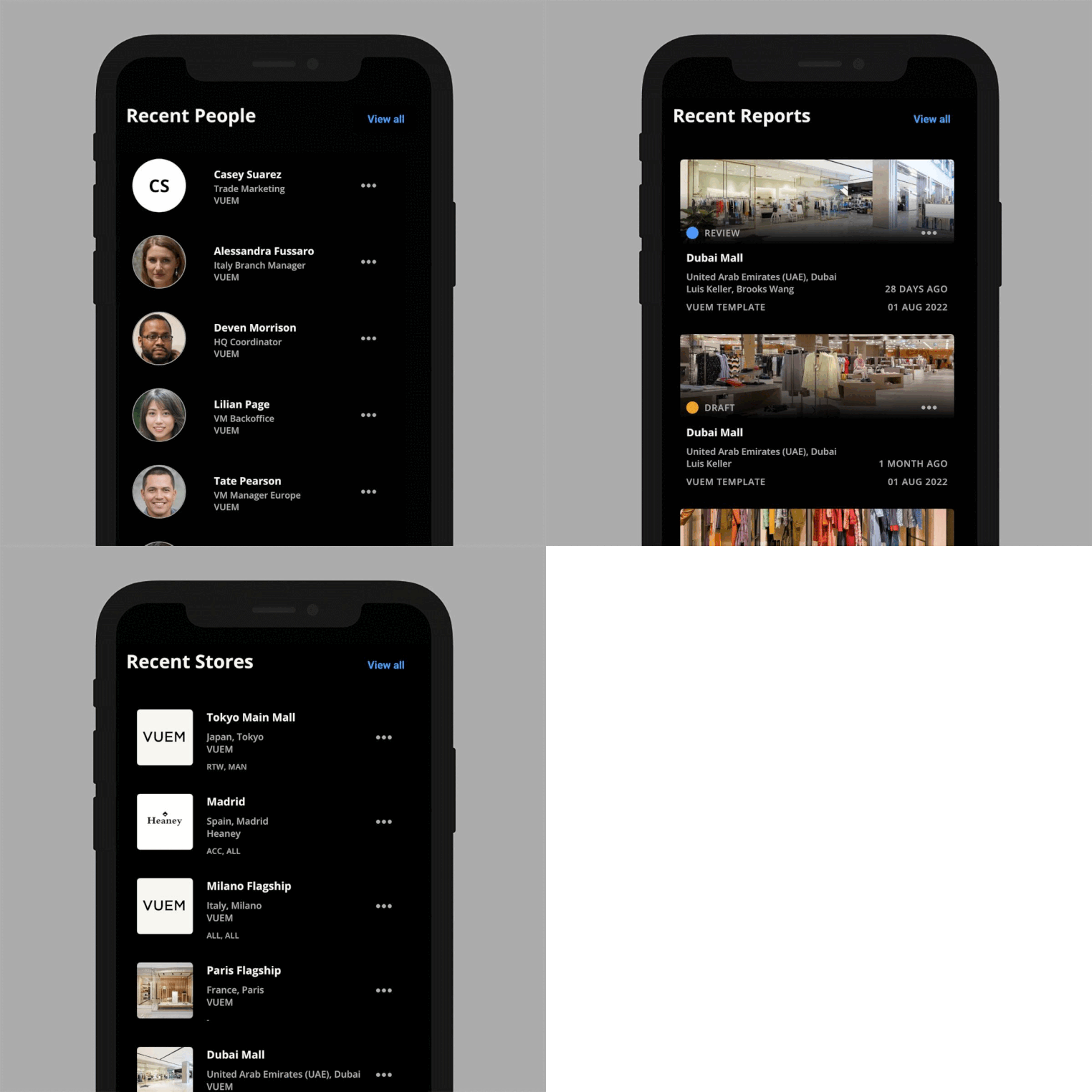
6. Recent Reports
The most recent reports entered into the system are collected in this area.
7. Recent Stores
The most recent stores created into the system are present in this section.
8. Recent People
This area will contain the most recent users added to user groups.
9. Menu

The round blue button at the bottom of the interface will open the VUEM menu containing the main sections active for your account, a quick button for creating a report and a link to a support contact.